

The public page
It lives on the public portal, with its own permanent address that is generated when it is approved. That address does not change even if you edit the title, so the links people have already shared keep working.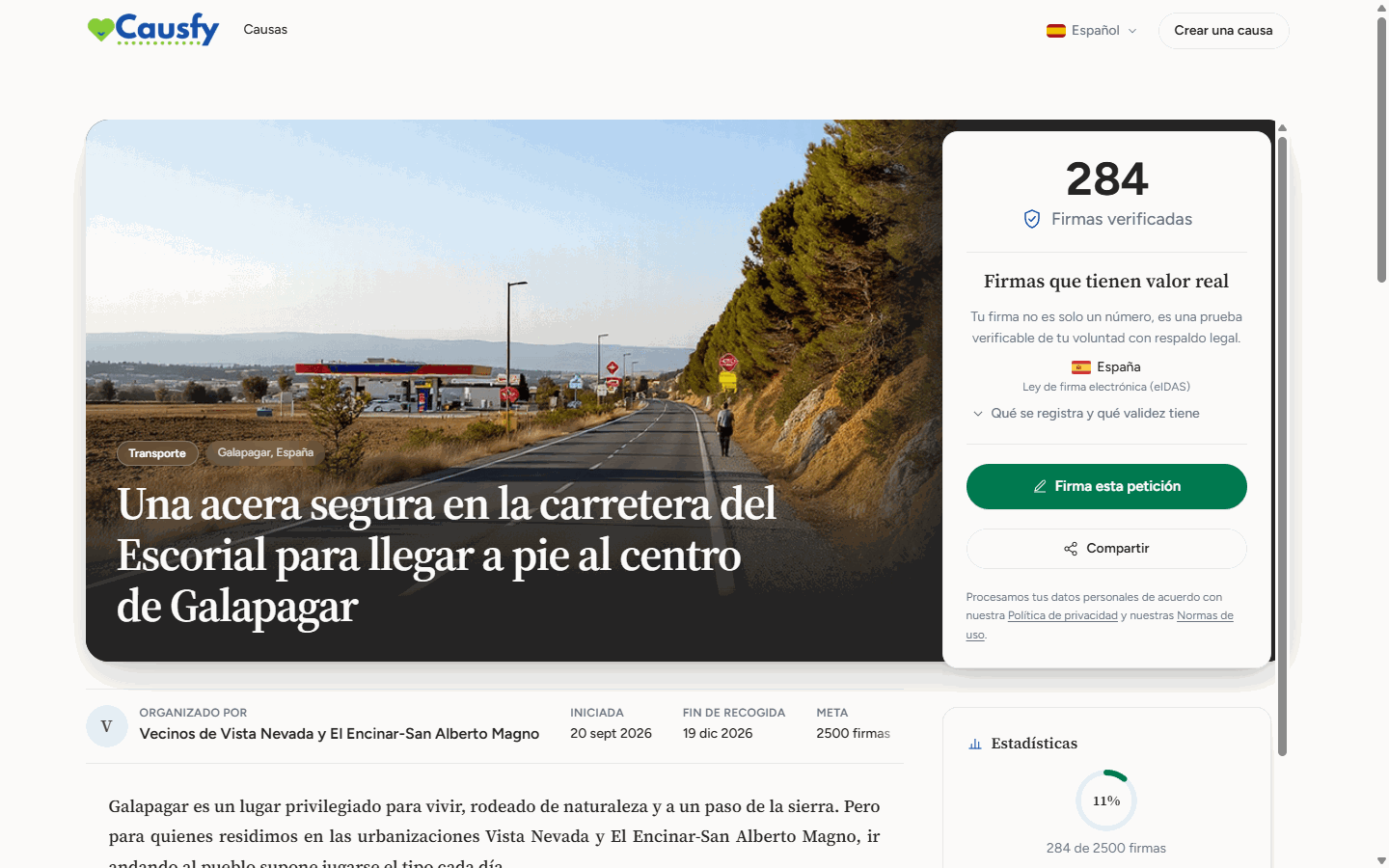
The cause's public page: what anyone who opens the link sees.
- The photo and the title, with who is organizing the cause.
- The progress towards the goal and the Sign this petition button.
- The story.
- Addressed to: whom the petition is aimed at.
- The petition: the formal text people sign. Where you put signer’s details, here it reads “your name”, “your city”…
- Who is backing this: a sample of the latest signatures and boosts.
- The updates.
- The comments.
A boost is a contribution that pays for promoting your cause on the portal, so it reaches more people. It is not a donation to the cause. For boosts you see how many your cause has received, never the amount.
Your dashboard
When you open your cause from My causes you see the header at the top: title, category, place, when it was created, when it ends and its status. Next to it you have the Go live, Edit and More buttons, and on the right the Share card.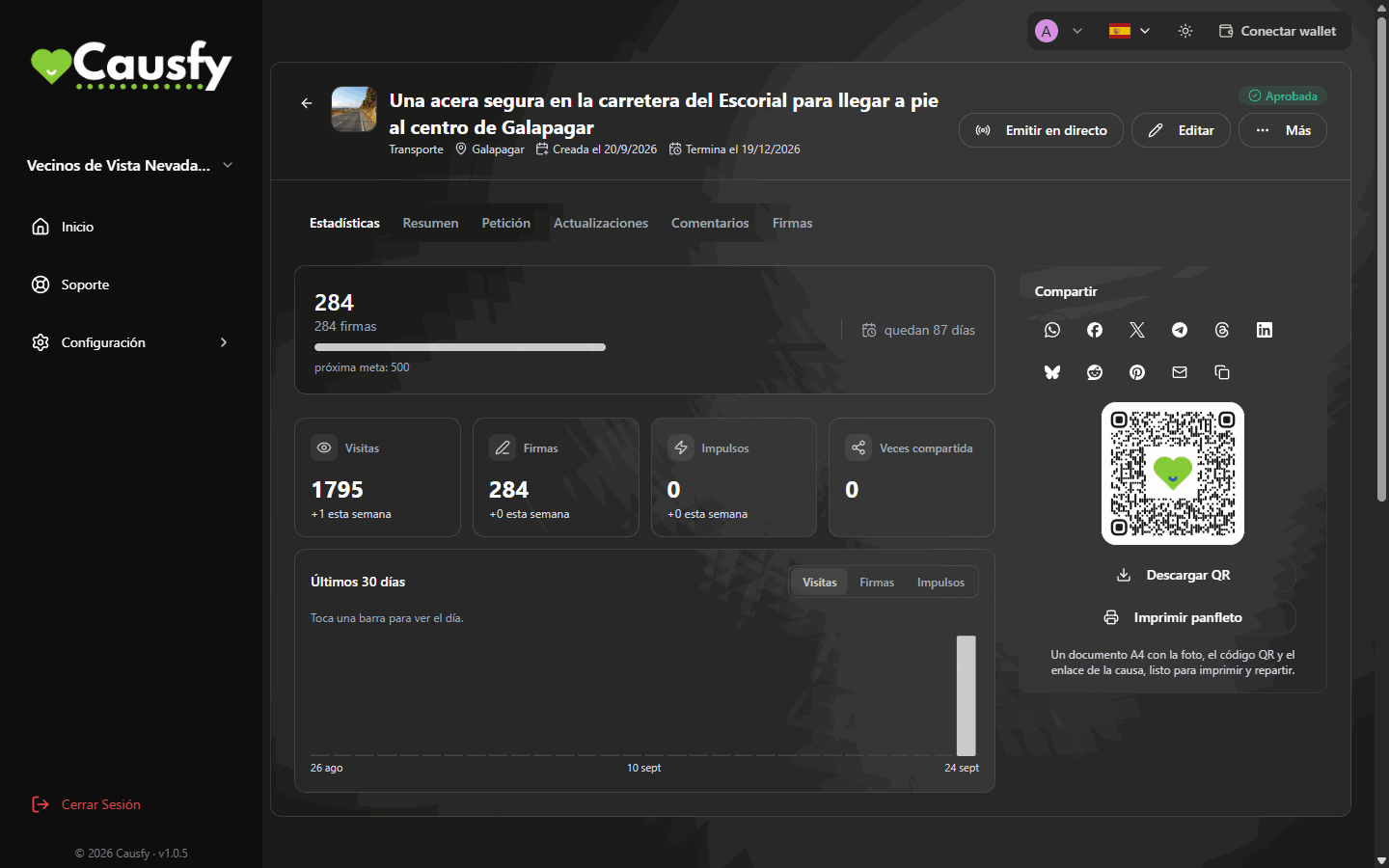
The detail view of an approved cause in your dashboard, with its buttons and tabs.
Edit
It only appears when the cause is approved or rejected. It opens the wizard so you can change whatever you need, and when you save with Resubmit for review the cause always goes back to review. What happens during review
Go live
Schedule a video broadcast from the cause itself. Live streams
Share
The link, the social networks, the QR code and the flyer. How to spread it
Signatures
The total, the report and the list. Signatures and certificates
The More menu
More gathers the rest of the actions:- Post update: tell people how the cause is going. Updates
- Copy public link: copies the address of the public page, ready to paste.
- View on the portal: opens the public page as people see it.
- Button for your website: the button generator for another website. Sharing your cause
- Pause and Close cause: see below.
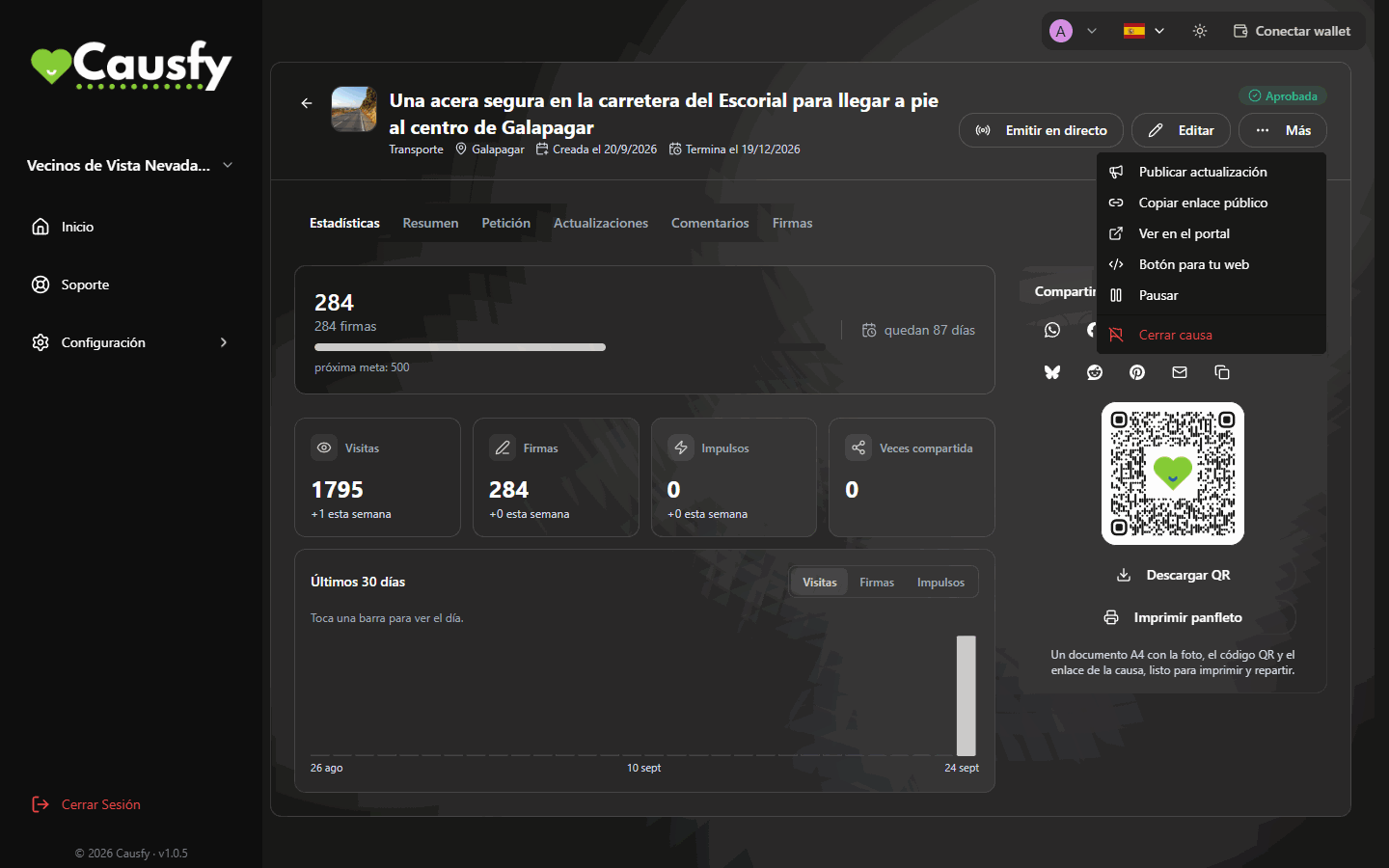
The More menu open, with all the cause's actions.
The tabs
Below the header you have these tabs: Statistics · Overview · Petition · Updates · Comments · Signatures · Donations.- Signatures only appears when the cause is approved, paused or closed.
- Donations only appears on causes that raise funds. That is where you set up the ways to donate and the bank account; it does not show who has donated. Fundraising is Coming soon. Getting paid
Statistics
The first tab gathers what has happened with your cause:- The signature progress towards the goal.
- Visits, Signatures (if the cause collects signatures), Boosts and Times shared. The first three also show what was added this week.
- Raised, if the cause raises funds.
- A Last 30 days chart, where you choose to see visits, signatures or boosts. Tap a bar to see that day’s figure.
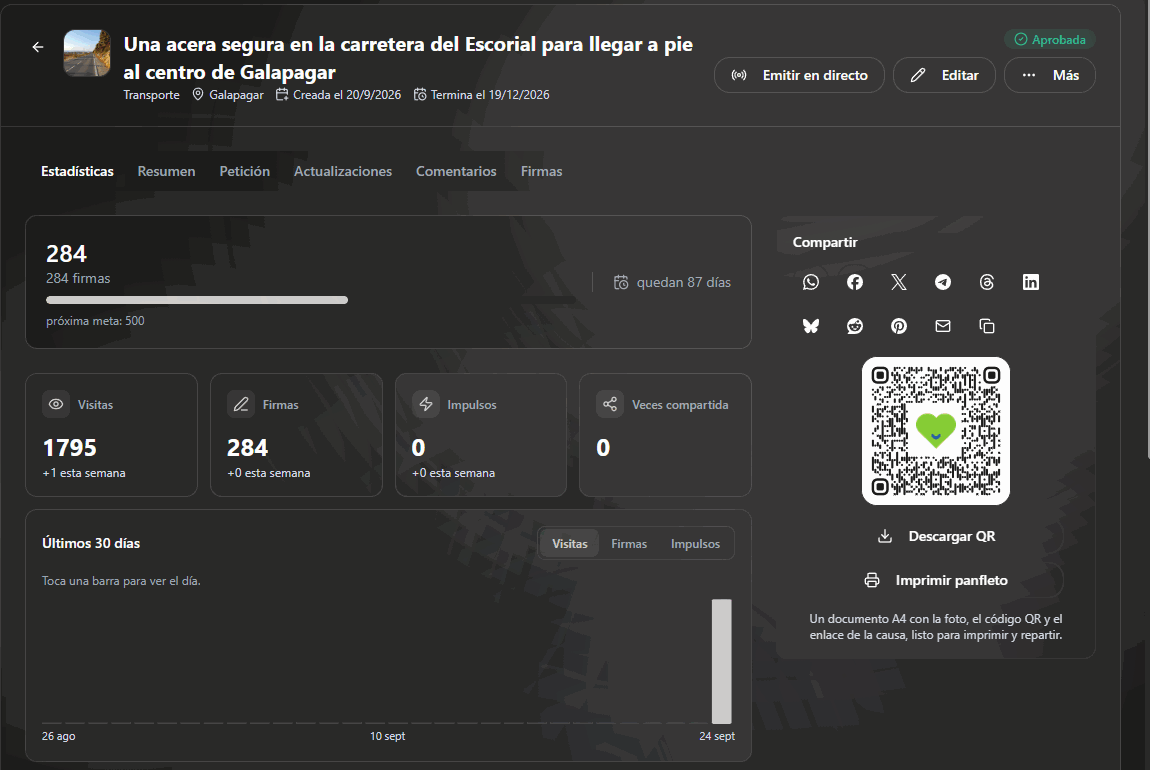
The Statistics tab: how many people have seen, signed, boosted and shared your cause.
Overview
The cause’s photo and the story. With Change image you replace the photo without going through the wizard. Each cause has a single photo.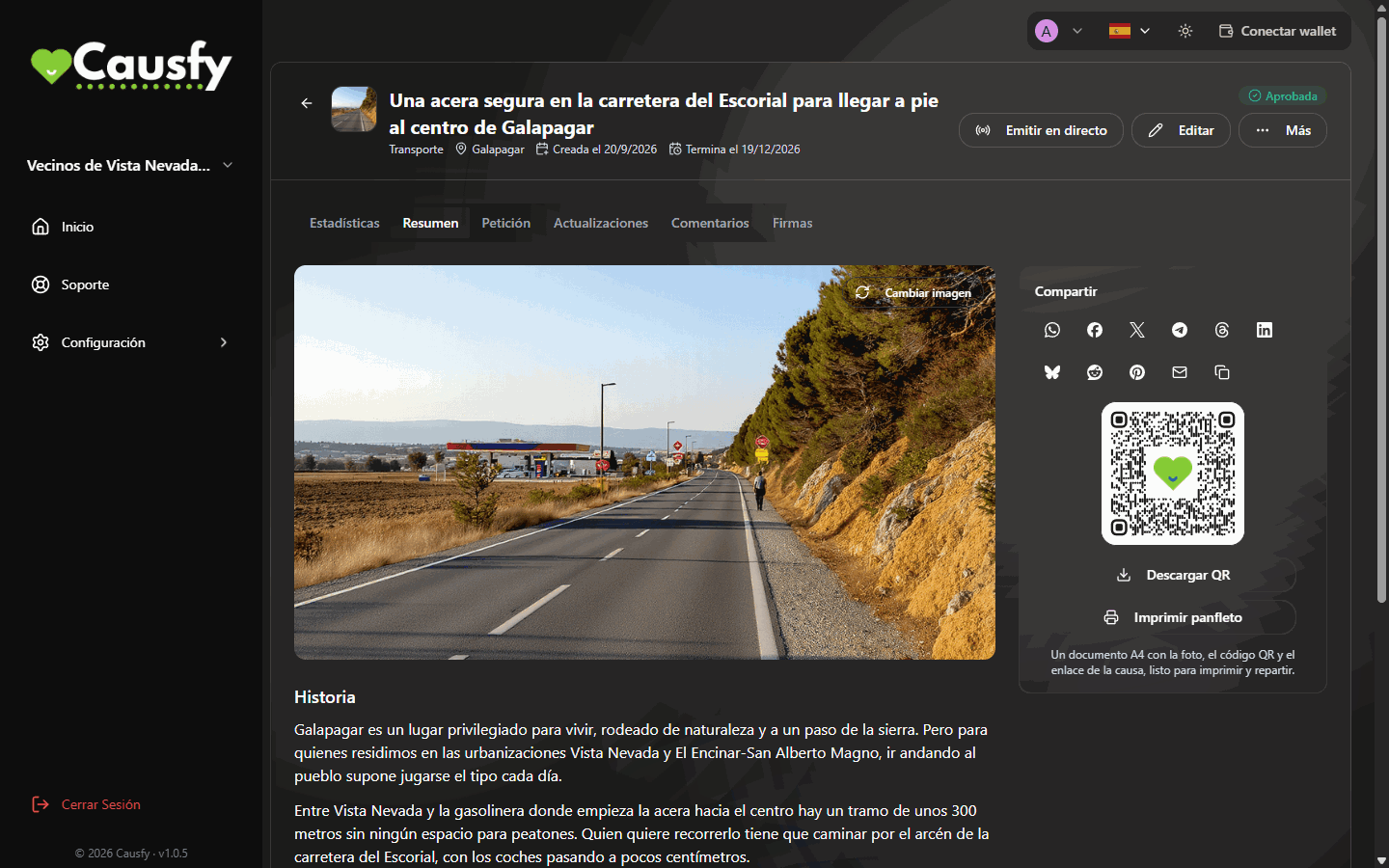
The Overview tab: the cause's photo, with the button to change it, and the story.
Petition
The text people sign and whom it is addressed to (Addressed to). From the first signature it warns that this text can no longer be changed. WhyComments
Visitors to the cause can comment, and comments are published straight away. You see them in the Comments tab.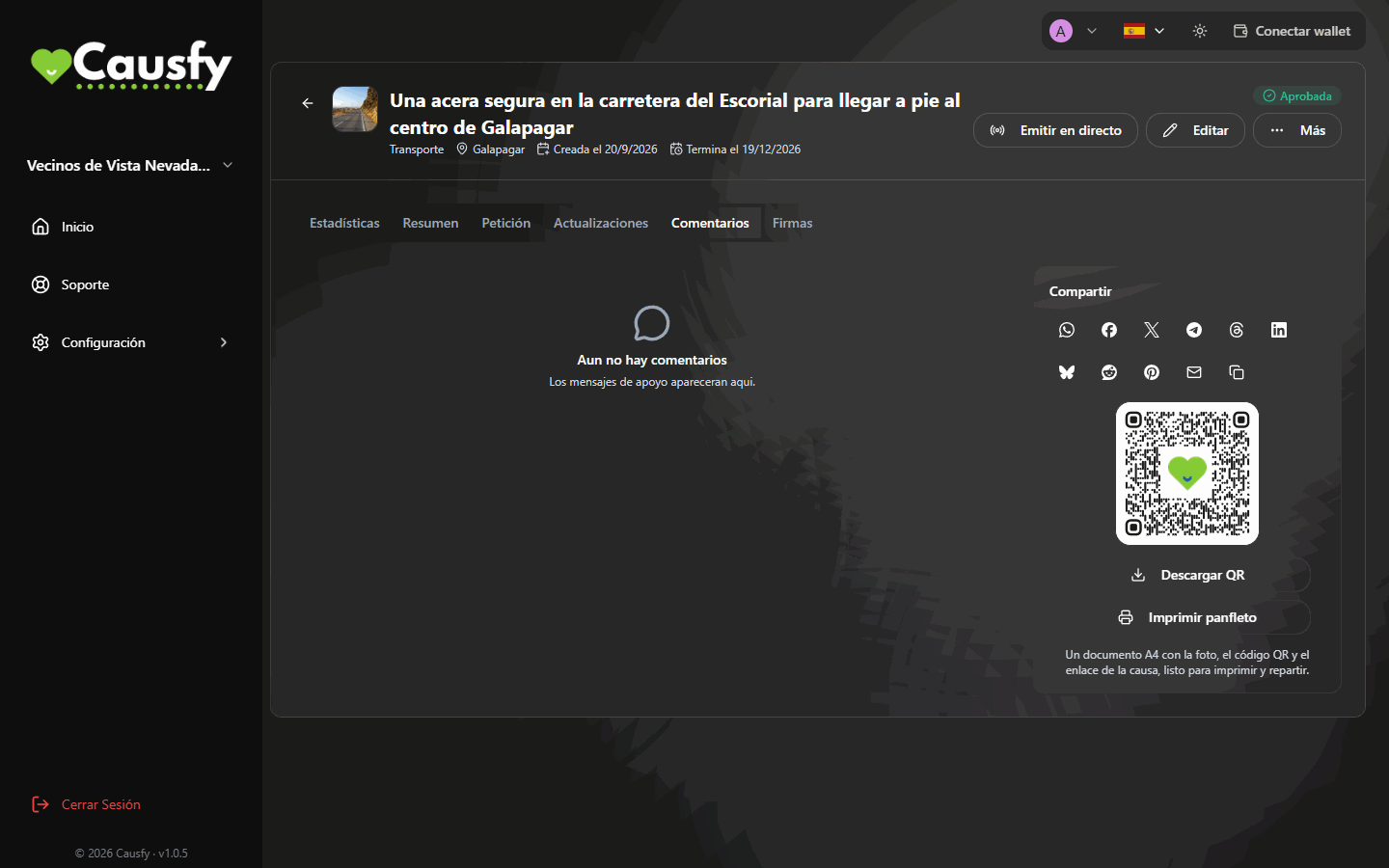
The Comments tab, with no messages yet.
Pause, reactivate and close
Pause
Pause
From More › Pause. The cause stops being visible and does not accept signatures. What has been collected is kept. Useful if you need to fix something important, or if the issue cools down and you would rather pick it up later.
Reactivate
Reactivate
With the cause paused, Reactivate appears. It becomes public again with everything it had, and shared links work again. If the administration paused it, you cannot reactivate it yourself: write to Support.
Close
Close
From More › Close cause, with the cause approved or paused. It asks you to confirm with Close permanently. It stops accepting signatures but the page can still be viewed, with its final result, and you can download the report and the certificates. It is what you want when you have achieved what you asked for: a closed cause with its goal exceeded is the best proof that it worked.