> ## Documentation Index
> Fetch the complete documentation index at: https://docs.causfy.com/llms.txt
> Use this file to discover all available pages before exploring further.
# Writing to support
> How to open a ticket, what to say in it and how to follow the conversation.
Support works through **tickets**, not loose emails. Every query has its number, its status and its thread, and nothing gets lost.
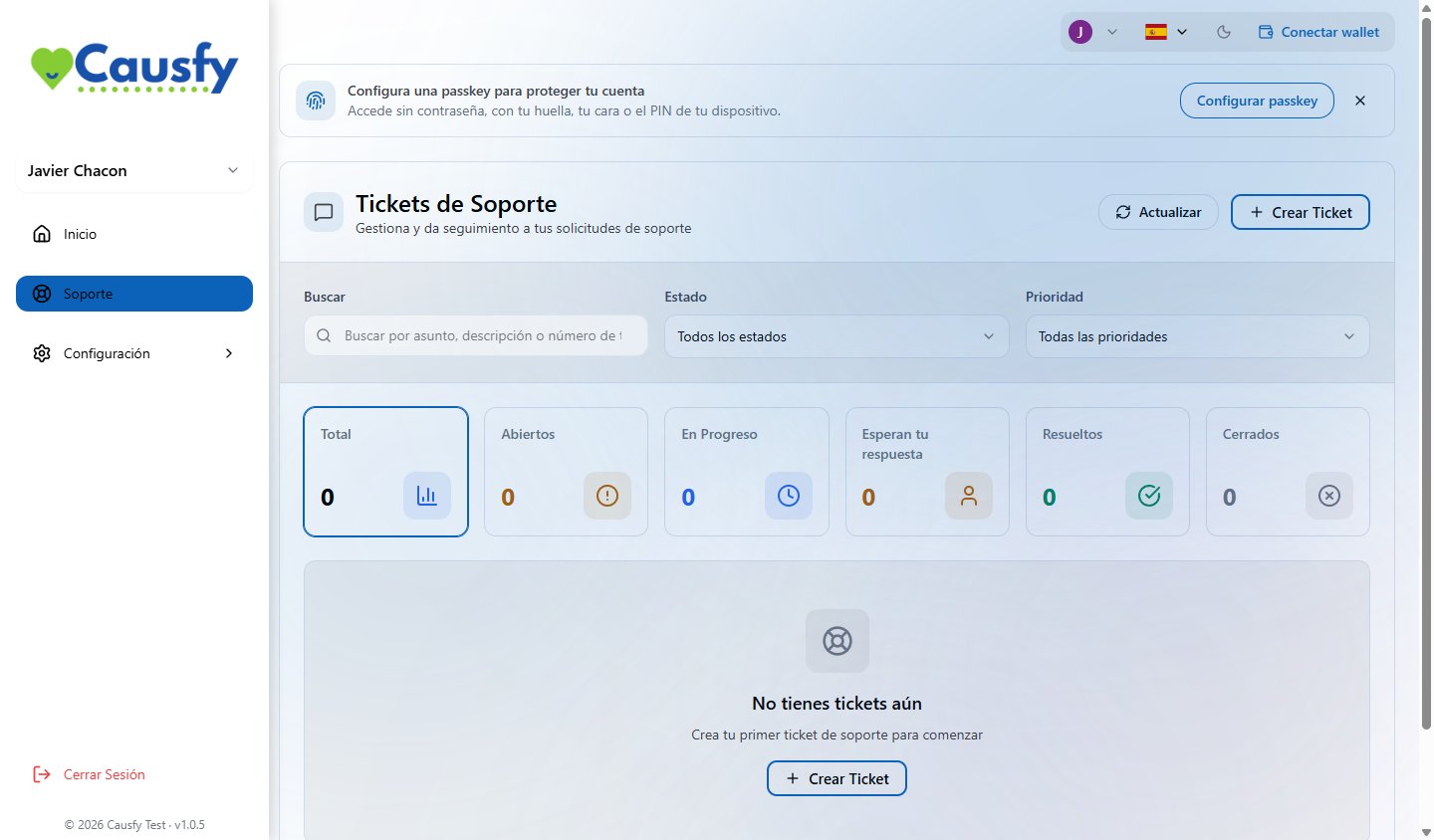
It is in **Support**, in the menu.
 ## Opening a ticket
If it is your first one, the screen offers it to you directly.
One line saying what is happening. "I can't enable card payments" is useful; "problem" is not.
The type routes the ticket to whoever knows about that. The priority marks the real urgency, not the one you would like.
What you did, what you expected and what happened. If there is an error message, copy it exactly.
A screenshot saves three replies.
When you create it you are given the ticket number. That number is the reference for everything that follows.
## Following the ticket
In the list you see all of yours with their status. The ones marked **Awaiting your reply** are the ones stuck on your side: until you answer, they don't move.
Inside the ticket you have the full thread, the attachments, who is handling it and the history of what has happened.
* **Add Comment** adds your reply to the thread.
* **Close Ticket** marks it as resolved.
* **Reopen Ticket** if the problem comes back, without having to start from scratch.
Reopen the old ticket instead of creating a new one when it is the same problem. Whoever reads it will have in front of them everything that was already tried.
## What to say so it gets sorted sooner
| Include | Example |
| ------------ | ------------------------------------------------------------- |
| Which cause | The link to the affected cause |
| What you did | "I requested the bank account and confirmed with the passkey" |
| What you saw | The exact text of the error |
| From where | Phone or desktop, and which browser |
Don't write passwords, verification codes or full card numbers in the ticket. Support will never ask you for them.
## What support cannot do
* Approve your cause before review. That is decided by moderation and has its own circuit.
* Sort out whatever Stripe has pending with you. Those notices are handled inside Stripe.
* Get into your account on your behalf.
## Opening a ticket
If it is your first one, the screen offers it to you directly.
One line saying what is happening. "I can't enable card payments" is useful; "problem" is not.
The type routes the ticket to whoever knows about that. The priority marks the real urgency, not the one you would like.
What you did, what you expected and what happened. If there is an error message, copy it exactly.
A screenshot saves three replies.
When you create it you are given the ticket number. That number is the reference for everything that follows.
## Following the ticket
In the list you see all of yours with their status. The ones marked **Awaiting your reply** are the ones stuck on your side: until you answer, they don't move.
Inside the ticket you have the full thread, the attachments, who is handling it and the history of what has happened.
* **Add Comment** adds your reply to the thread.
* **Close Ticket** marks it as resolved.
* **Reopen Ticket** if the problem comes back, without having to start from scratch.
Reopen the old ticket instead of creating a new one when it is the same problem. Whoever reads it will have in front of them everything that was already tried.
## What to say so it gets sorted sooner
| Include | Example |
| ------------ | ------------------------------------------------------------- |
| Which cause | The link to the affected cause |
| What you did | "I requested the bank account and confirmed with the passkey" |
| What you saw | The exact text of the error |
| From where | Phone or desktop, and which browser |
Don't write passwords, verification codes or full card numbers in the ticket. Support will never ask you for them.
## What support cannot do
* Approve your cause before review. That is decided by moderation and has its own circuit.
* Sort out whatever Stripe has pending with you. Those notices are handled inside Stripe.
* Get into your account on your behalf.